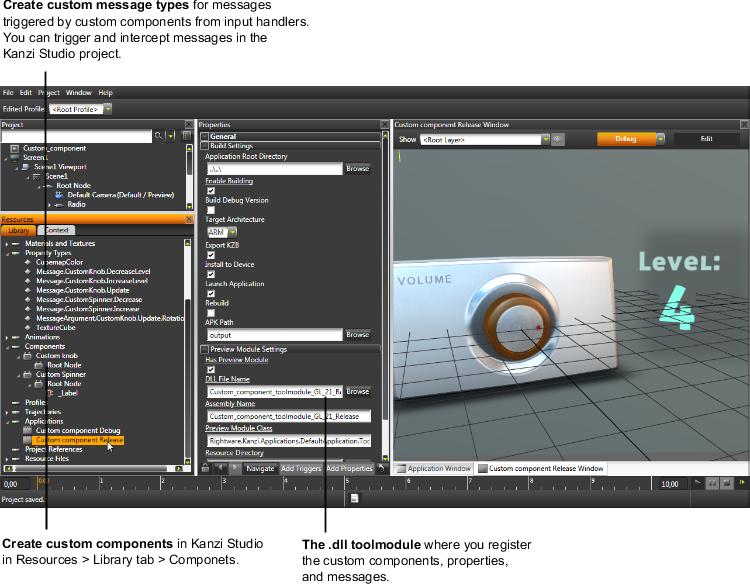
This example demonstrates the creation of a custom UI component in Kanzi and using the component in Kanzi Studio through the custom tool module architecture. The Kanzi application contains Visual Studio projects and a Kanzi Studio project, which uses a toolmodule configuration to apply behaviors defined in the custom components.
You can find the example in <KanziWorkspace>/Examples/Custom_component.
The two custom components in the example demonstrate different aspects for creating interactivity through the Kanzi message system:
Both components register their types in the implementation of the RegisterToFactory function.
Custom Knob generates these message types intercepted in Kanzi Studio at the Custom Knob:
In this example Custom Spinner registers its message types:
RegisterToFactory function using function kzuMessageRegistryAddMessageType()with KZU_MESSAGE_ROUTING_TUNNELLING_BUBBLING routing. This way the message types are registered as globally available.Custom knob and Custom spinner must be registered to factory by the application in the kzApplicationConfigure function of the main application. Doing so you register both component types and their messages to Kanzi Engine and can use them in the Kanzi application. First create a Kanzi Studio project, then launch the main application from the Custom_component_executable Visual Studio configuration.
The custom_component_toolmodule configuration shows how to compile the two custom components into the Kanzi Studio preview module .dll. By selecting this as the Preview application (instead of the <Default Application>), you can see the defined behavior for the custom components in the Kanzi Studio Preview.
This image shows the custom components, message types, and toolmodule configuration in the Kanzi Studio project.